
What is done, what is late, and what changed this week.
Boards for the work, a list of the projects it belongs to, and a weekly review that says what got done, what is overdue and what was said — in one app.
What it does
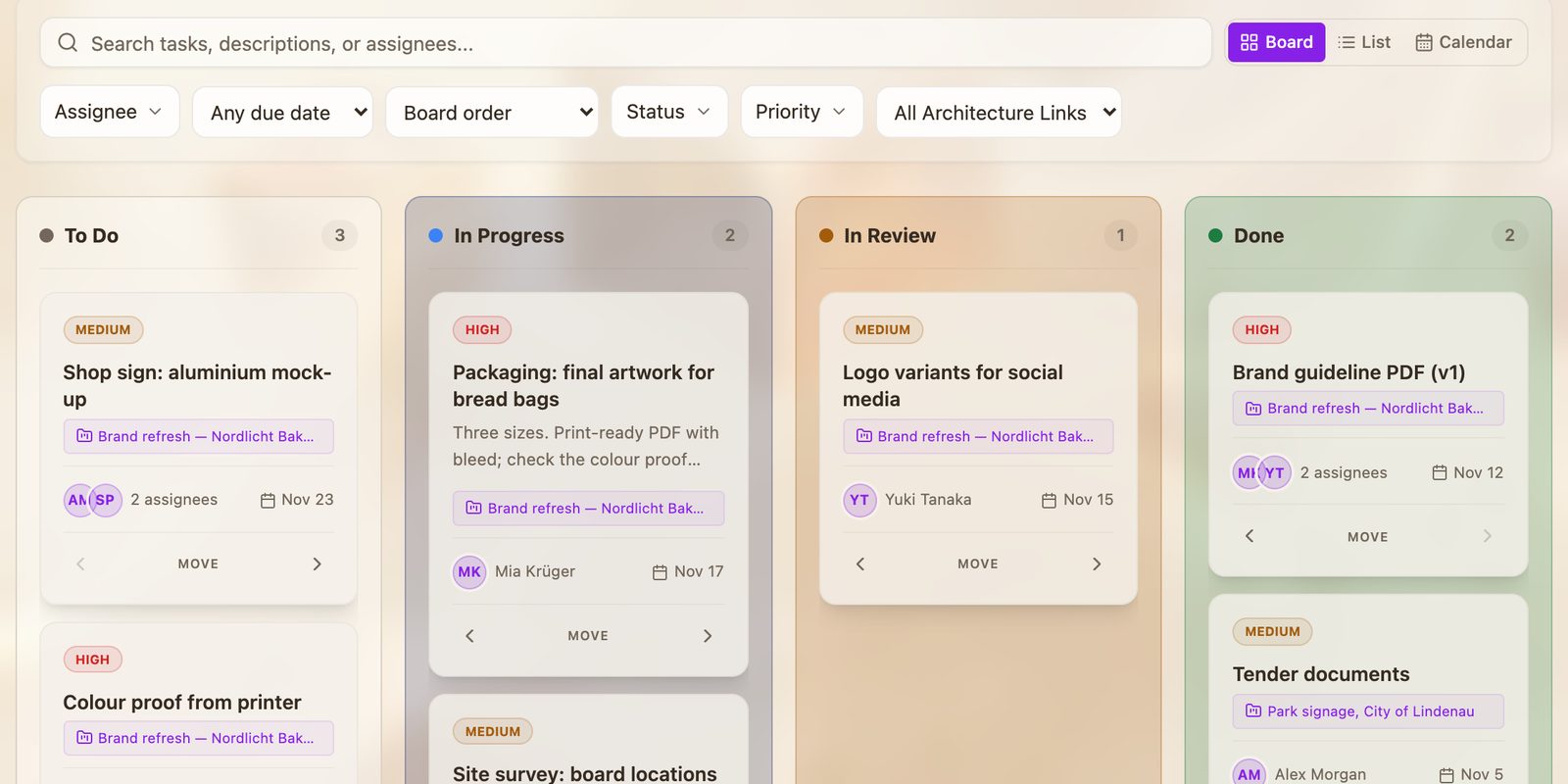
Boards that fit how you work
Cards move through To do, In progress, In review and Done. Drag them across columns and undo a move you did not mean. The same cards also show as a list or on a calendar by due date.
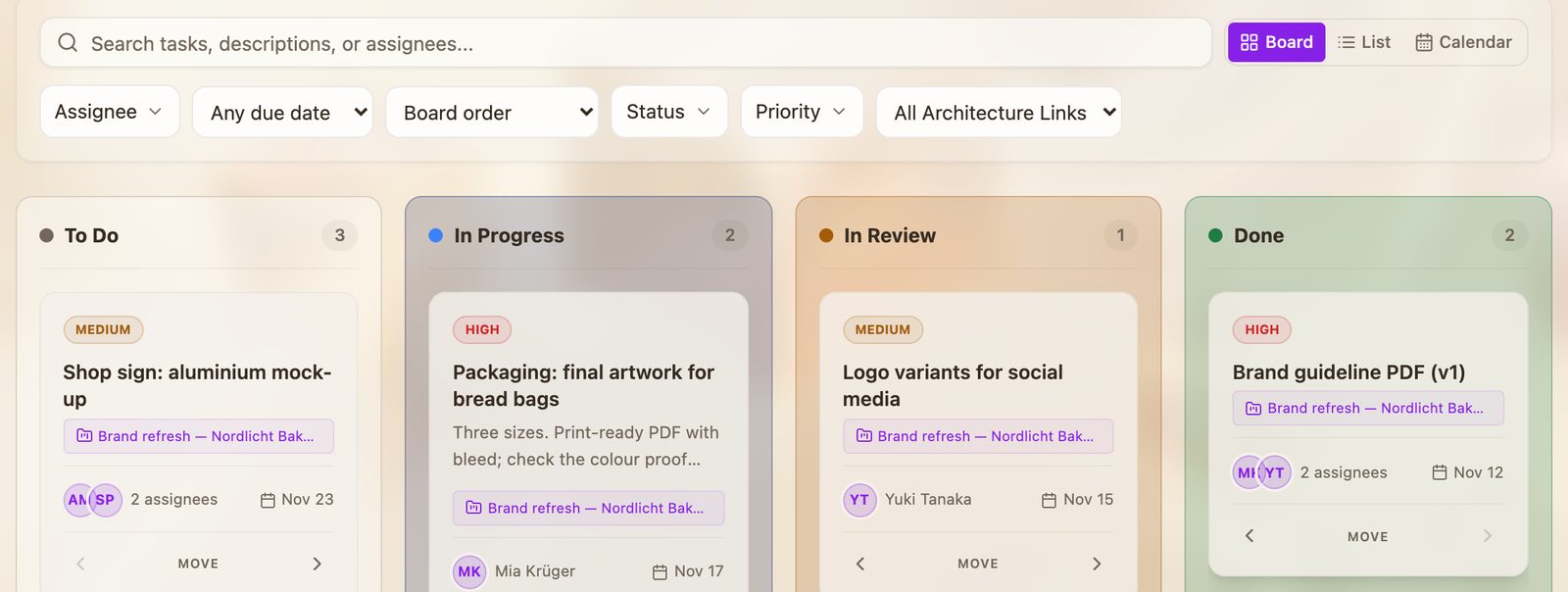
Find the cards that matter
Filter by assignee — several at once —, by due date (overdue, this week, no date) and by priority, and sort by due date, priority or last change. The board remembers your view in this browser.
Cards that keep their history
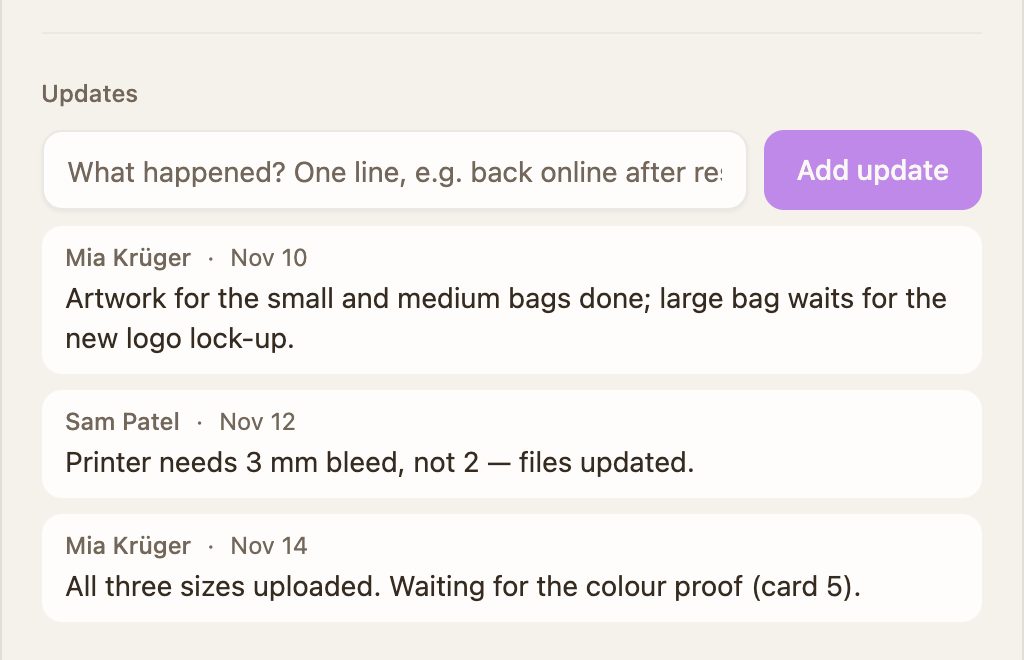
Progress notes on each card, up to 20 pictures per card, and a link to the fact sheet and the requirement file it is about. Boards sort into folders and can be archived and restored.
The weekly review
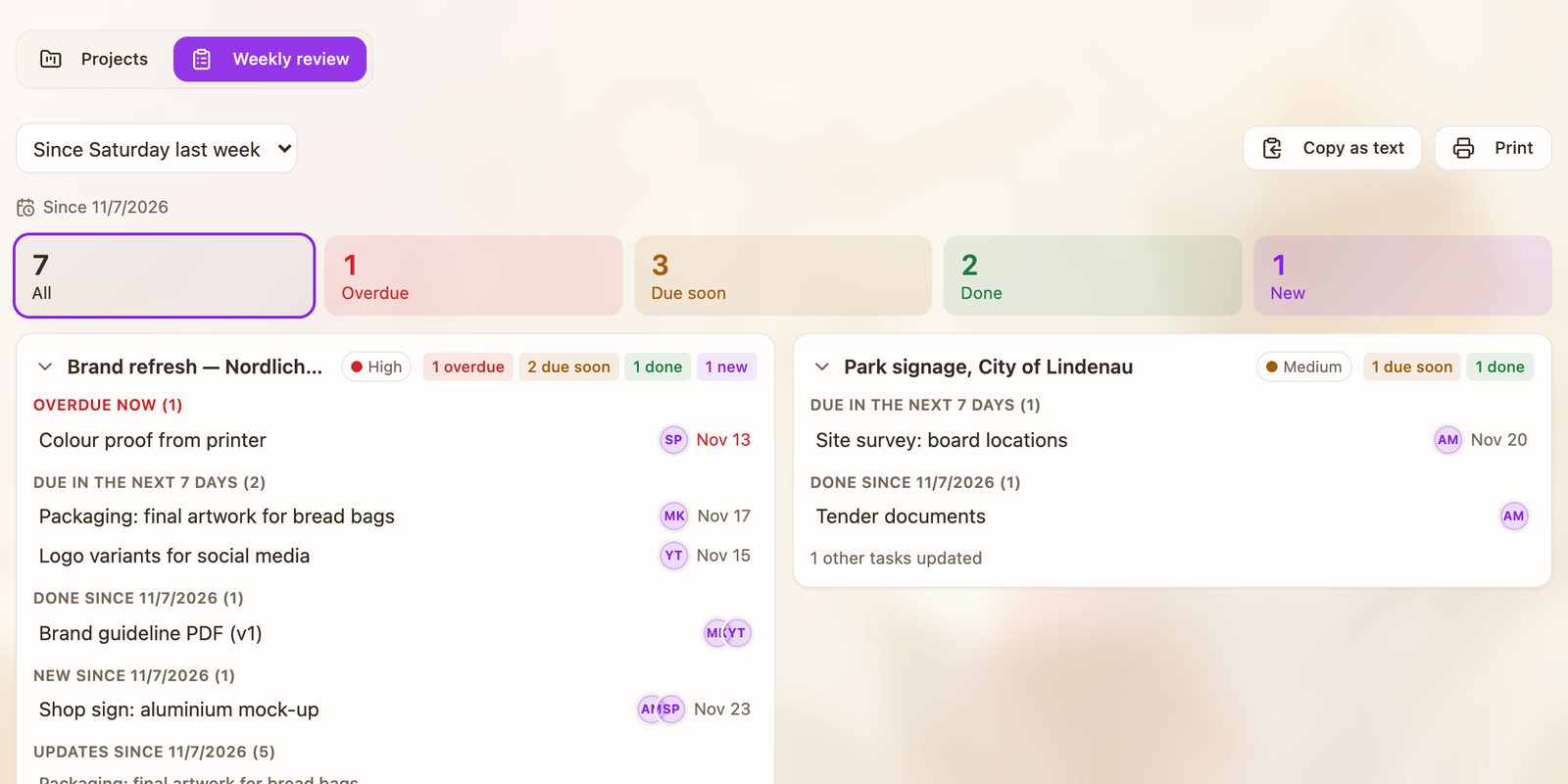
For any period: per project, what is overdue, due soon, done and new, the notes written and the status log. Quiet projects fold into one line, and the whole review copies as plain text.
Progress at a glance
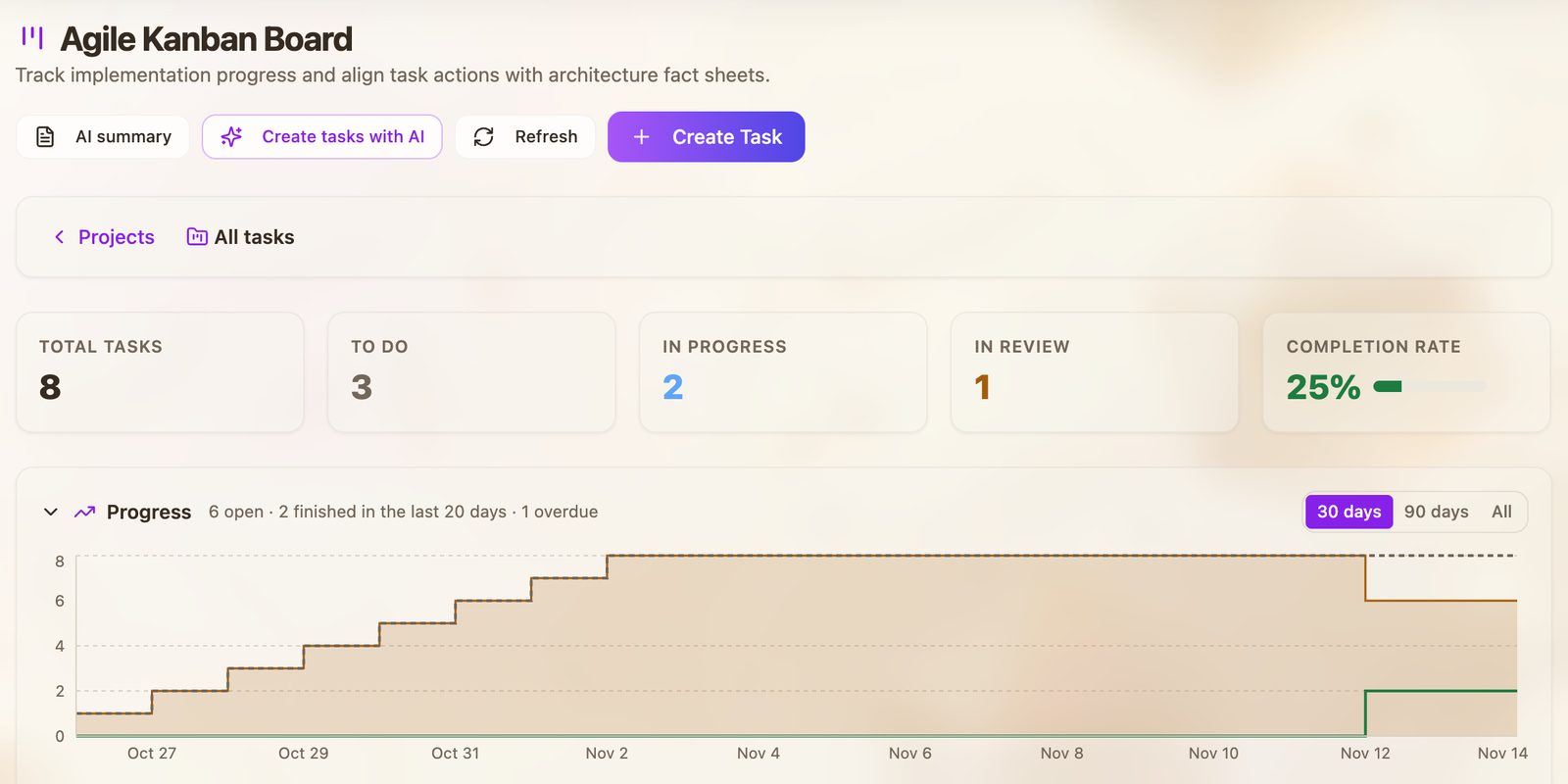
A burn-up chart of created and finished cards for what the board is showing, so the open work is one shaded area rather than a number to work out.
AI that proposes, never writes alone
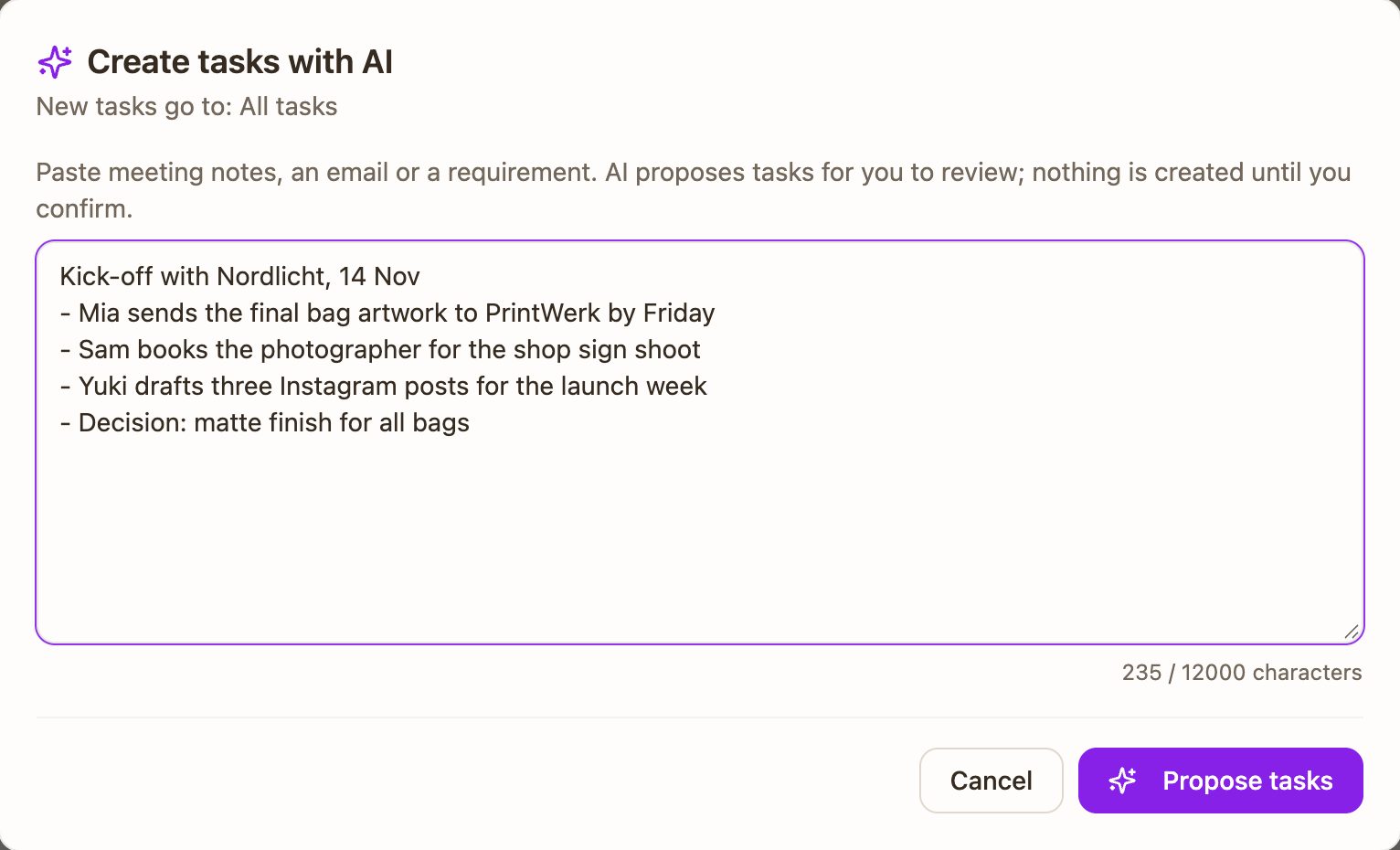
Summarise a board or a card in a few lines, or paste meeting notes and get proposed cards. You edit and untick them; nothing is created until you press Create.
How to start
-
1
Create a board
Open Projects, add a board for a team or a stream of work, and group boards in folders.
-
2
Add the cards
Type them in, or paste notes and let AI propose them. Give each a due date, a priority and the people on it.
-
3
Review the week
Open the weekly review before the meeting, narrow it to what is overdue or done, and copy it into the minutes.
Articles
Guides to planning and running team work.
A Jira alternative for small teams — honestly compared
Jira is built to plan and track work at scale. If your team just needs a clear board, a weekly review and AI that proposes cards, a lighter tool may fit.
Kanban for a small team — without Jira's overhead
A Kanban board a small team keeps current: four columns, one owner per card, real due dates, and a weekly review instead of a status meeting.
Questions
Can several people work on one card?
Yes. A card can have several assignees from your organisation, or a name for someone outside it, and the board can show the cards of several people at once.
What does the AI see?
Only the cards of your own organisation that the request is about. Drafting returns proposals and creates nothing; the cards you keep are created like any other.
Does it connect to the rest of the toolbox?
A card can point at a fact sheet from Architecture and a file from Files, HR can book working hours to a card, and the dashboard lists your own cards under My work.
What does it cost?
Projects is part of every plan, including the free one. Summaries and drafts count toward your plan's monthly AI allowance.
Know where every project stands before the meeting.
Start free with one board. The weekly review is there as soon as there are cards.