
Who worked when, and who is around next week.
Log the hours you worked on a calendar, plan when you and your team are available, on leave or away, and let a planned shift become logged hours once it is over — in one app.
What it does
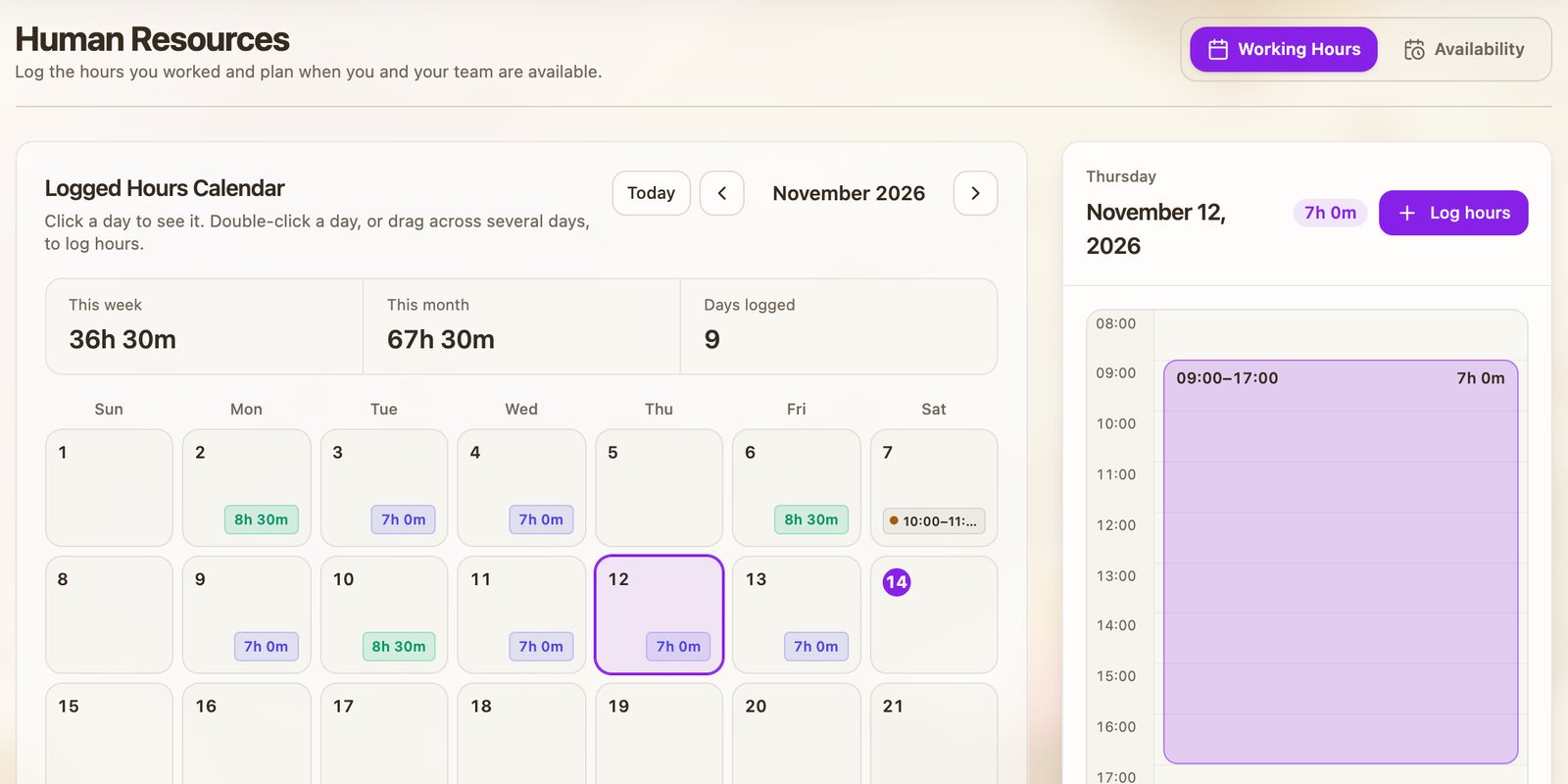
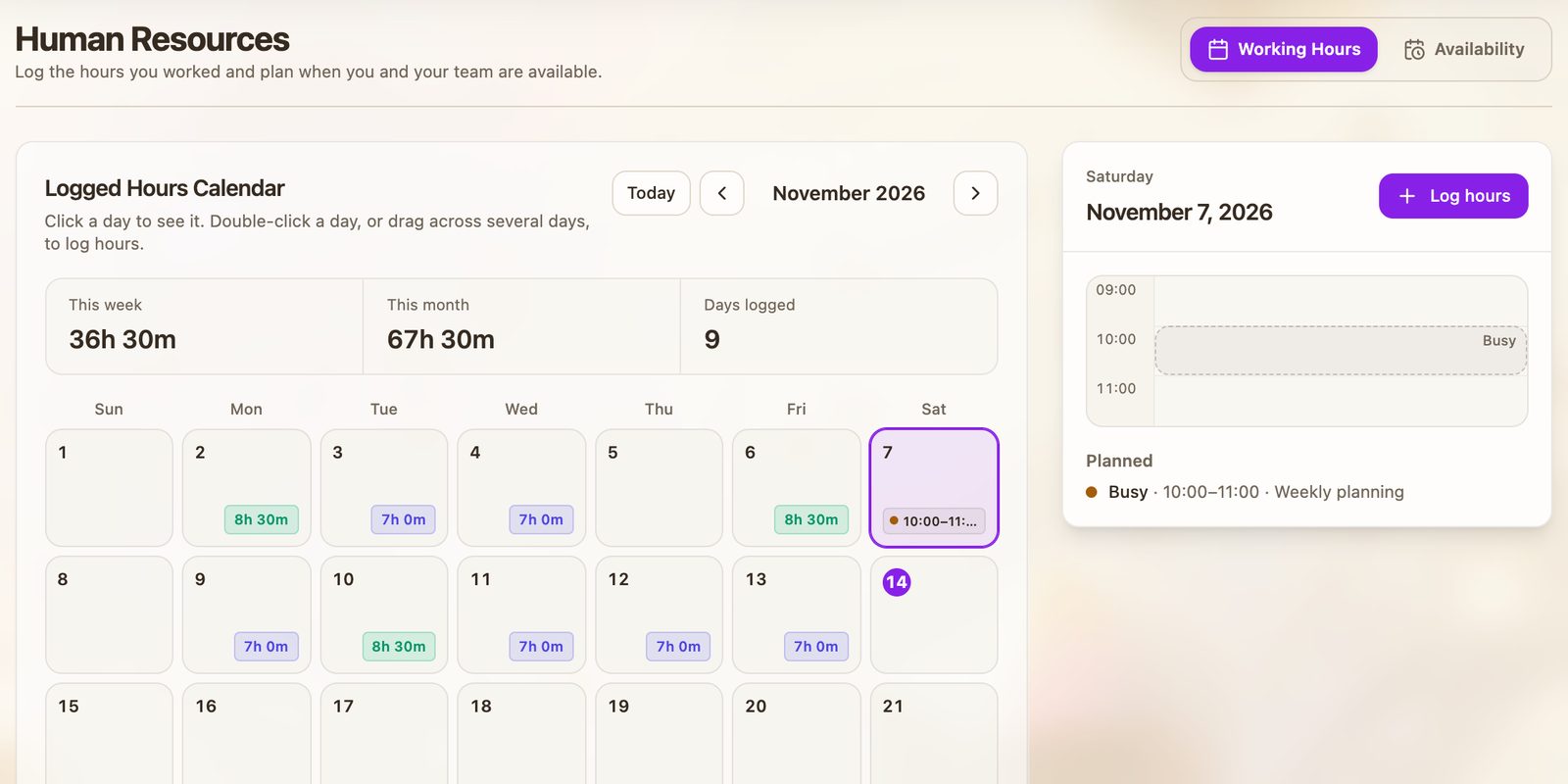
Hours on a calendar
Double-click a day to log hours, or drag across several days to log the same hours on each. Start and end times are optional; the month shows which days have 8 hours or more.
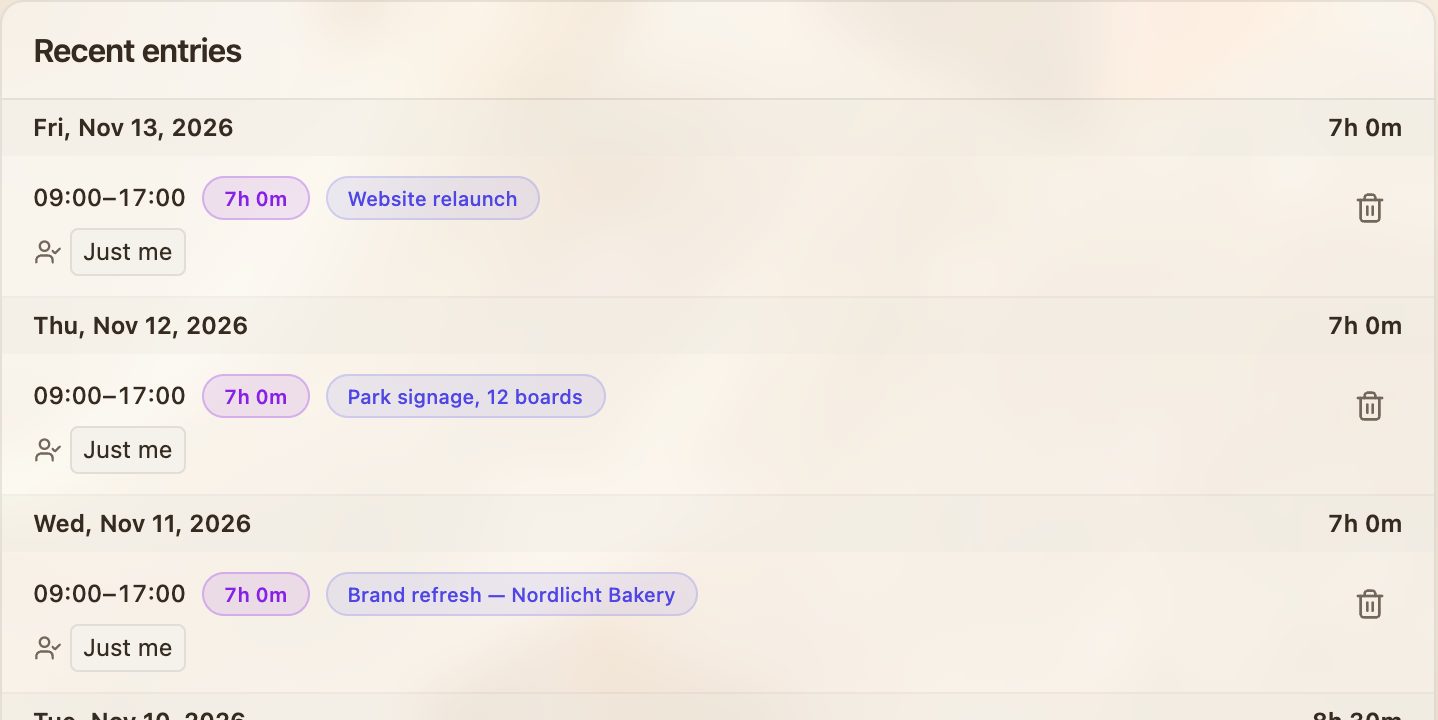
Book hours to a task
Each entry can point at a task from Projects, with a description, so the hours say what they were spent on.
Availability, leave and time away
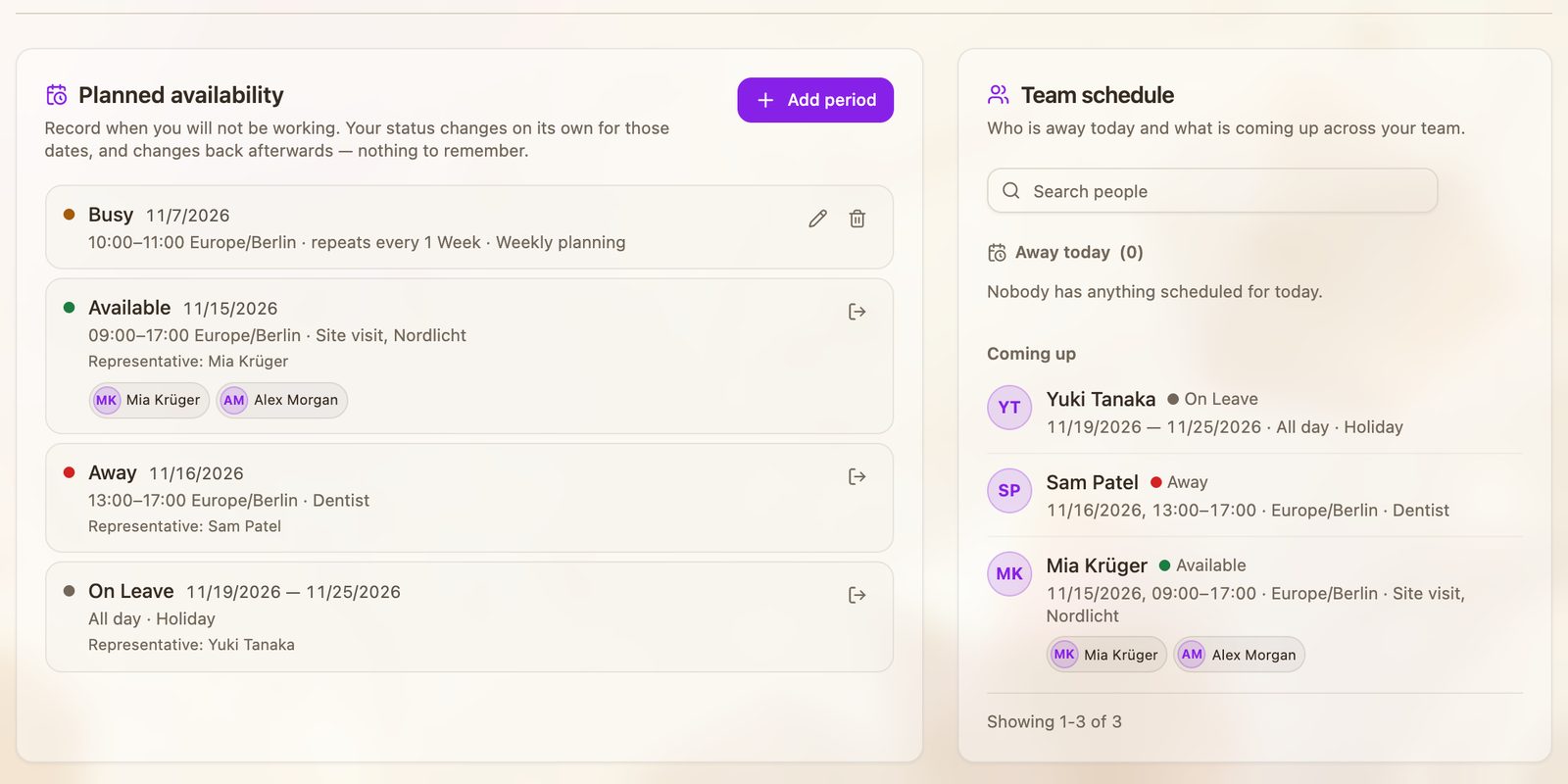
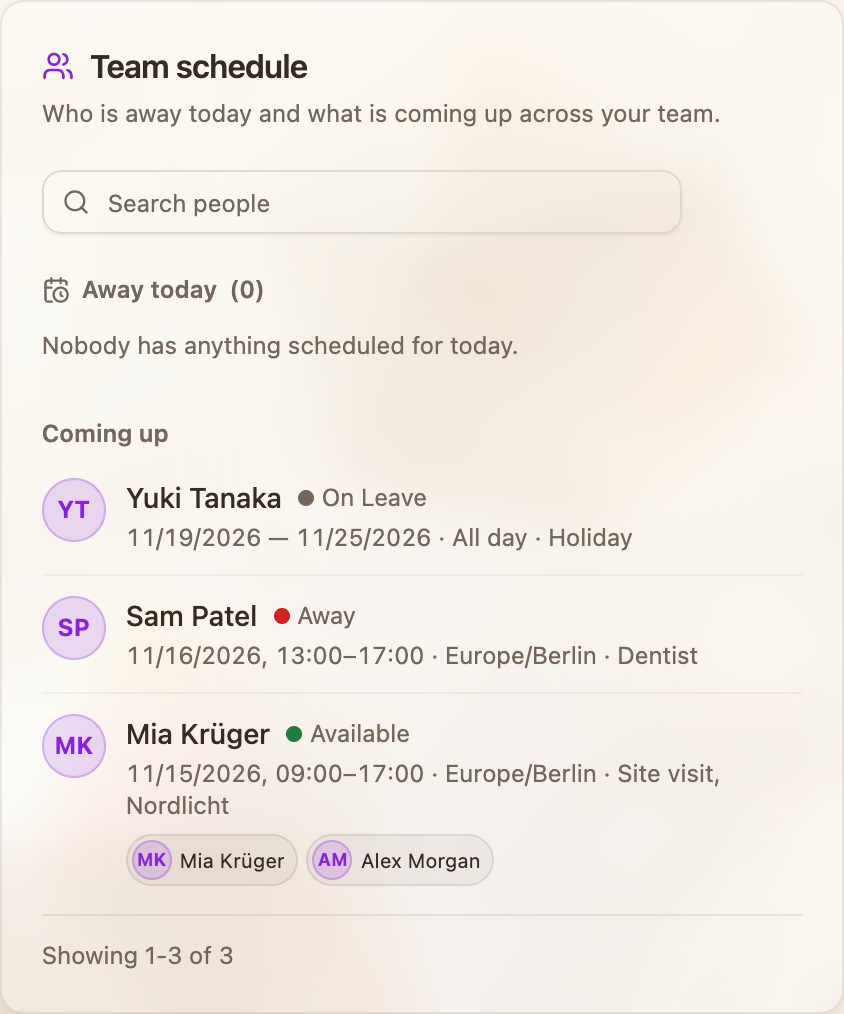
Plan periods as available, busy, away or on leave — whole days or with times, in another time zone when someone works from elsewhere. An admin can enter leave for the person who is on it.
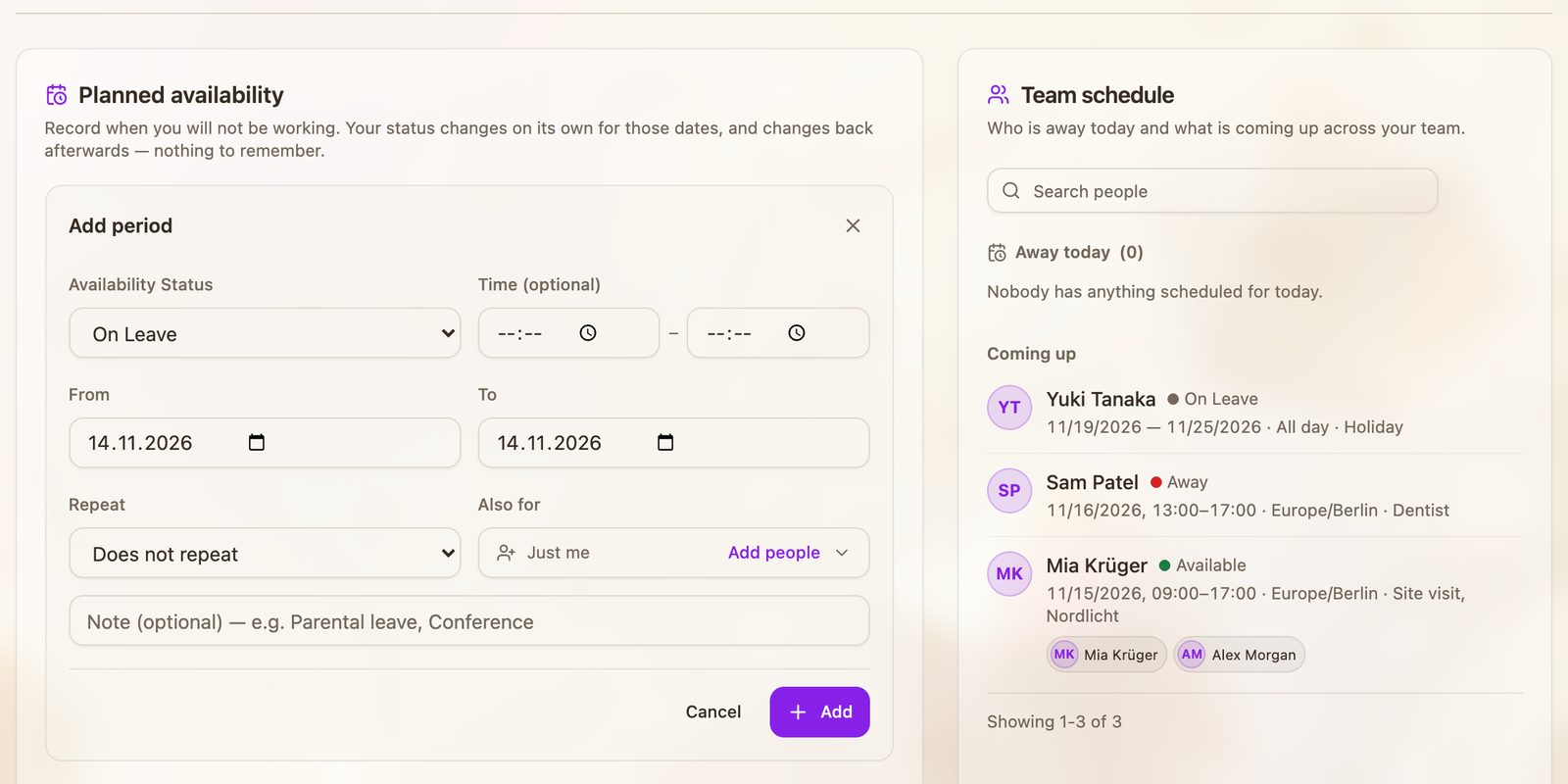
Repeating plans
A standing arrangement repeats every so many days, weeks, months or years, until a date or for good. Months and years follow the calendar, so the same date next year is the same date.
Planned shifts log themselves
A shift planned as available or busy is logged as working hours once it ends. Anyone who already logged that time themselves keeps their own record and gets no second one.
For several people at once
Put colleagues on a shift or a record you log. It counts for each of them, and anyone can take themselves off an entry somebody else made.
How to start
-
1
Log a day
Open HR, double-click today and enter the hours. Add a task or a note if you want.
-
2
Plan the weeks ahead
On Availability, add your leave and the times you are busy or away. Repeat what repeats.
-
3
Bring in the team
Members of your organisation see each other's calendar, so everyone knows who is around.
Articles
Guides to time tracking and team scheduling.
Clockify alternative — time tracking for a small team
Clockify is a dedicated time tracker. If you want hours on a calendar, planned availability and shifts that log themselves, here is when another tool fits.
Simple time tracking for a small team
Time tracking people keep up: what to record, how much detail is enough, and planning absences next to logged hours — for teams of 3 to 30.
Questions
Who can see my hours and my calendar?
Members of your organisation can see each other's logged hours and planned periods. You change your own; an admin can also manage anyone's. People outside the organisation see nothing.
What counts as a work status?
Available and busy. A period with one of those can log itself as working hours when it ends; away and on leave never do. You can switch this on or off per entry.
Where do I see my week's total?
Your account page shows the hours you logged this week, Monday to Sunday, and how many entries they come from.
What does it cost?
HR is part of every plan, including the free one.
Know who is around, and who did the work.
Start free by logging today. Your team's plans can come later.